Rescue and Refine Your Videos: A Practical Look at Aiarty Video Enhancer for Photographers
Published: Wed, 01/21/26
Updated: Tue, 01/27/26
Hello friends! We're back and kicking off 2026 with a sweet discount from our friends at Aiarty - 30% off a yearly subscription, 36% off a lifetime subscription.
We're looking forward to an exciting 2026 and can't wait to be a part of your photography journey! If you have questions or comments, you can drop them in our FACEBOOK GROUP, or email us directly via our dedicated (and supported by a real person, unless he's out making photographs of his dog!) support desk. support@digital-photography-school.com
-- Simon
As photographers, we’re used to chasing the perfect still image. But video can be a different story. Low light, handheld shots, or older clips often fall short of the standards we expect. What looks fine on a phone screen can reveal noise, blur, or softness on a
larger display.
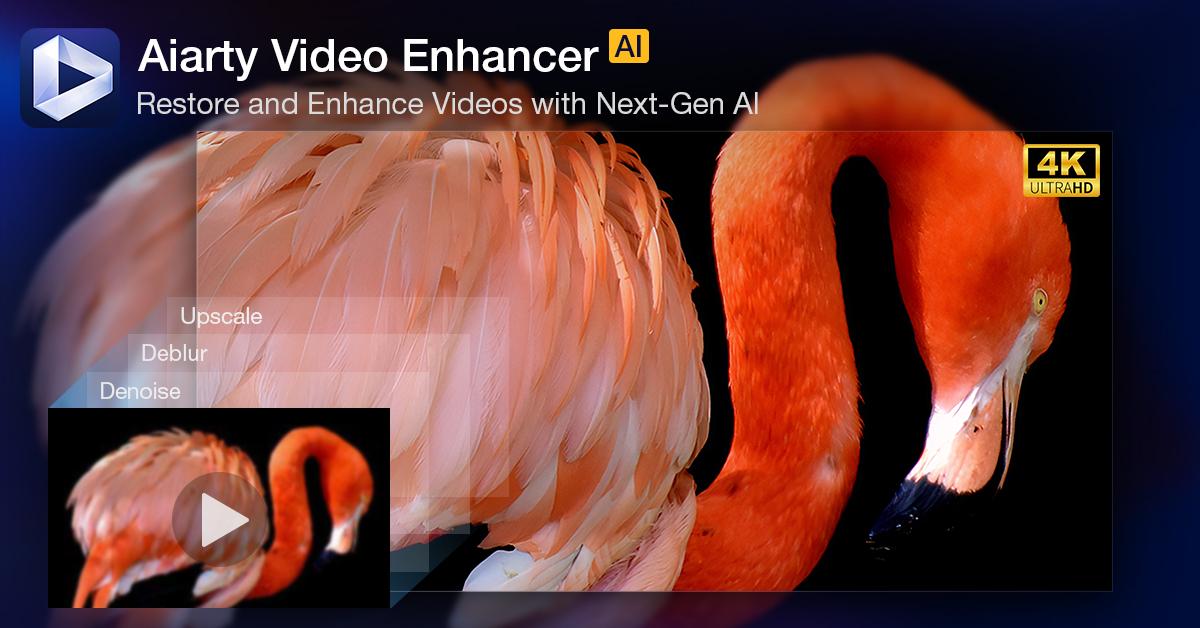
Thankfully, there are tools that help photographers rescue and refine imperfect footage—and Aiarty Video Enhancer is one such tool. Designed for simplicity and quality, it makes video enhancement accessible even if you’re not a professional video editor.
In this guide,
we’ll explore where such tools are useful, how they fit into a creator’s workflow, and practical ways to enhance your footage—without overcomplicating your process.
Why Aiarty Video Enhancer Matters for Photographers
Aiarty Video Enhancer focuses on improving footage rather than creative editing. It’s a desktop application that processes videos locally, using GPU acceleration and optimized AI models to speed up processing while maintaining high-quality results. This approach has several practical advantages for photographers:
Privacy: Your clips stay on your computer.
Speed: No uploading or waiting for cloud processing.
Simplicity: You don’t need advanced video skills to get
started.
It’s particularly useful for challenges many photographers face:
Low-light noise: Reduces luminance and color noise while preserving natural texture.
Older footage: Refreshes 1080p DSLR or mirrorless clips for modern displays.
Batch processing: Enhance multiple clips at once—perfect for events, travel, or documentaries.
Even with careful shooting, some footage can’t be perfectly captured. Tools like Aiarty make it easier to get the most
out of what you have.
Aiarty's Price (and a limited-time offer!)
Professional video enhancement software can be expensive, but Aiarty offers simple and affordable options:
Exclusive Holiday Savings: Use code NYSPECIAL to get an extra $5 off the Lifetime License (limited time)
For photographers exploring video enhancement, this is a low-risk way to test the software and see how it fits into real projects. Just keep in mind—this special offer is only available for a limited time. More details here.
Key Features and When They
Help
Rather than replacing professional editing software, Aiarty works best as a pre-processing or rescue tool. Here’s how its main features can help photographers:
Texture Enhancement: Optimize fine details (like fabric, foliage, or skin texture) without aggressive sharpening.
Video Upscaling (HD → 4K): Make older footage look better on modern 4K displays.
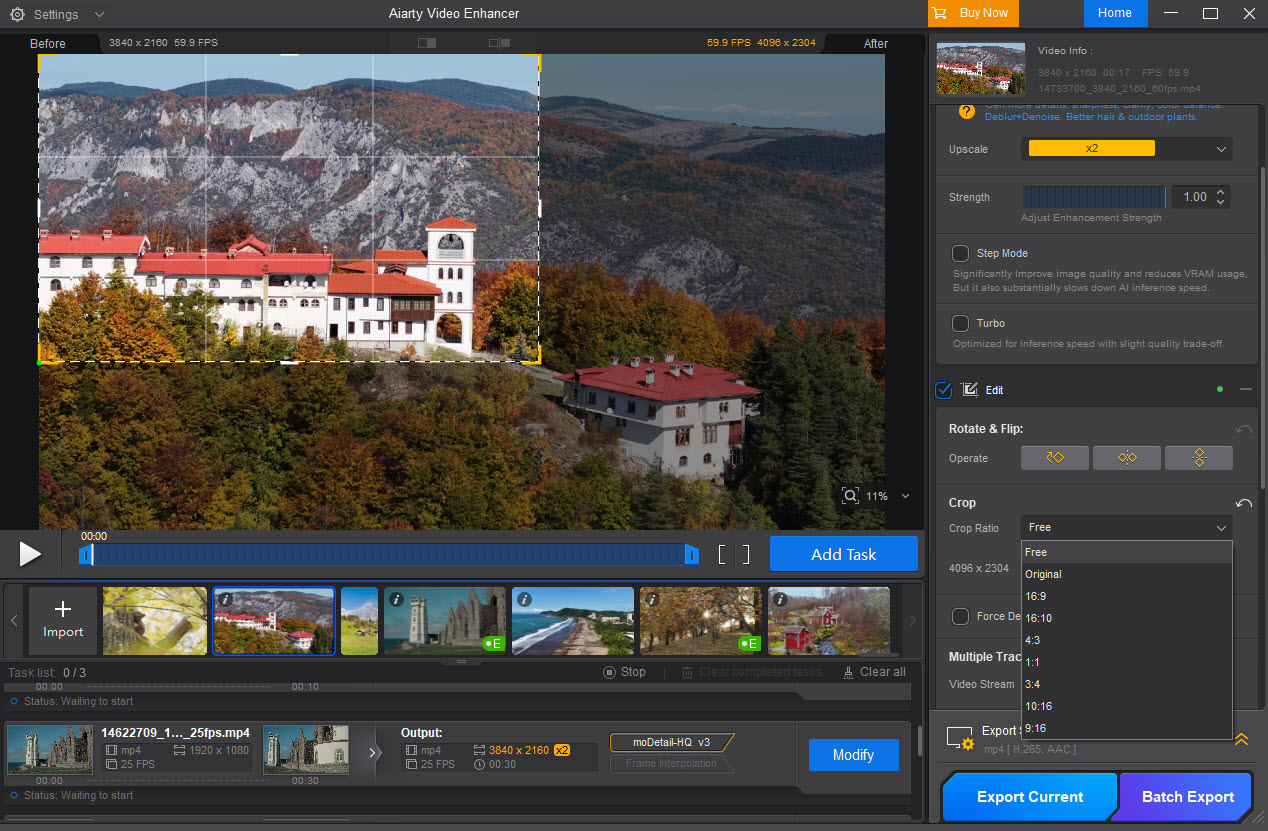
Basic Edit and Color Controls: Quick cut, crop, rotate, and simple exposure
and contrast tweaks.
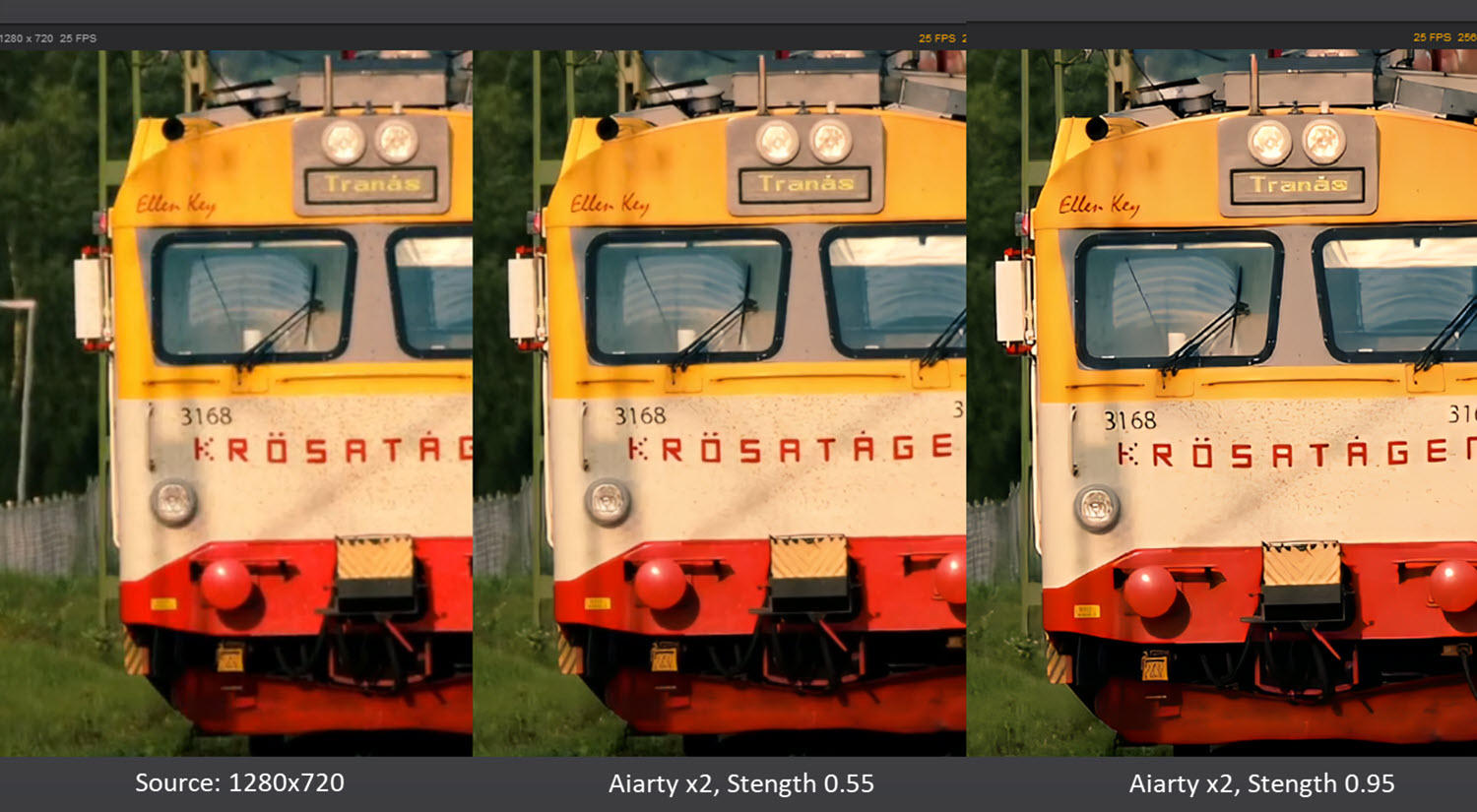
Strength Slider: Control how far the enhancement goes to avoid an over-processed look.
Frame Interpolation: Allows higher frame rates or smoother slow motion from standard clips.
Audio Denoising: Reduces background hiss or wind noise alongside video processing.
These features address common video problems, making it practical for photographers who want results without a steep learning curve.
How to Improve Video Quality: A Practical 4-Step Workflow
Aiarty Video Enhancer makes improving video quality straightforward—even for photographers and creators without advanced editing skills.
Step 1: Import
Your Footage
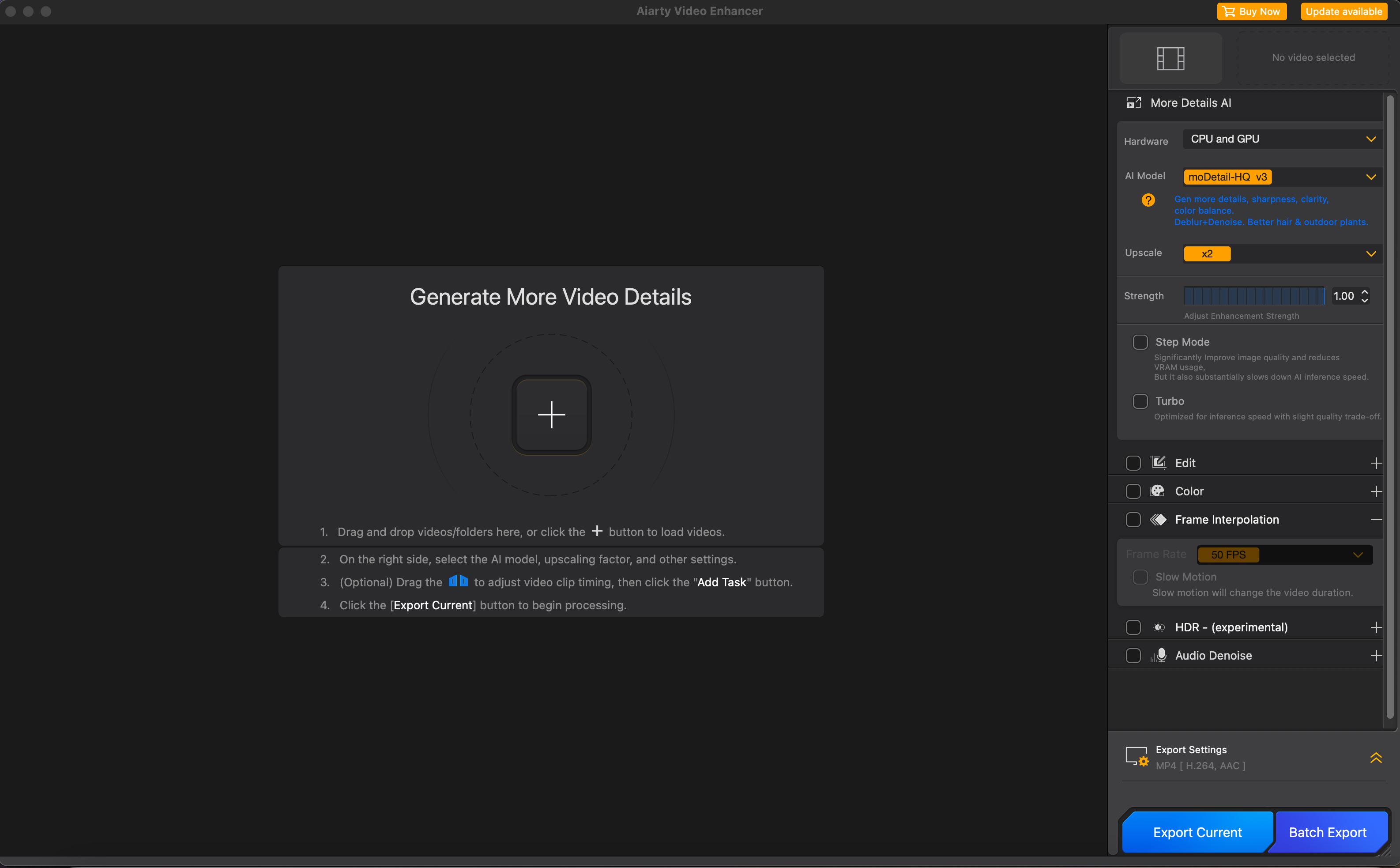
Drag and drop your video file into Aiarty’s main window. Batch processing is available, saving time for multiple clips from events, travel, or documentaries.
Step 2: Choose an AI Model for
Video Enhancement
Aiarty offers three specialized AI models for different scenarios:
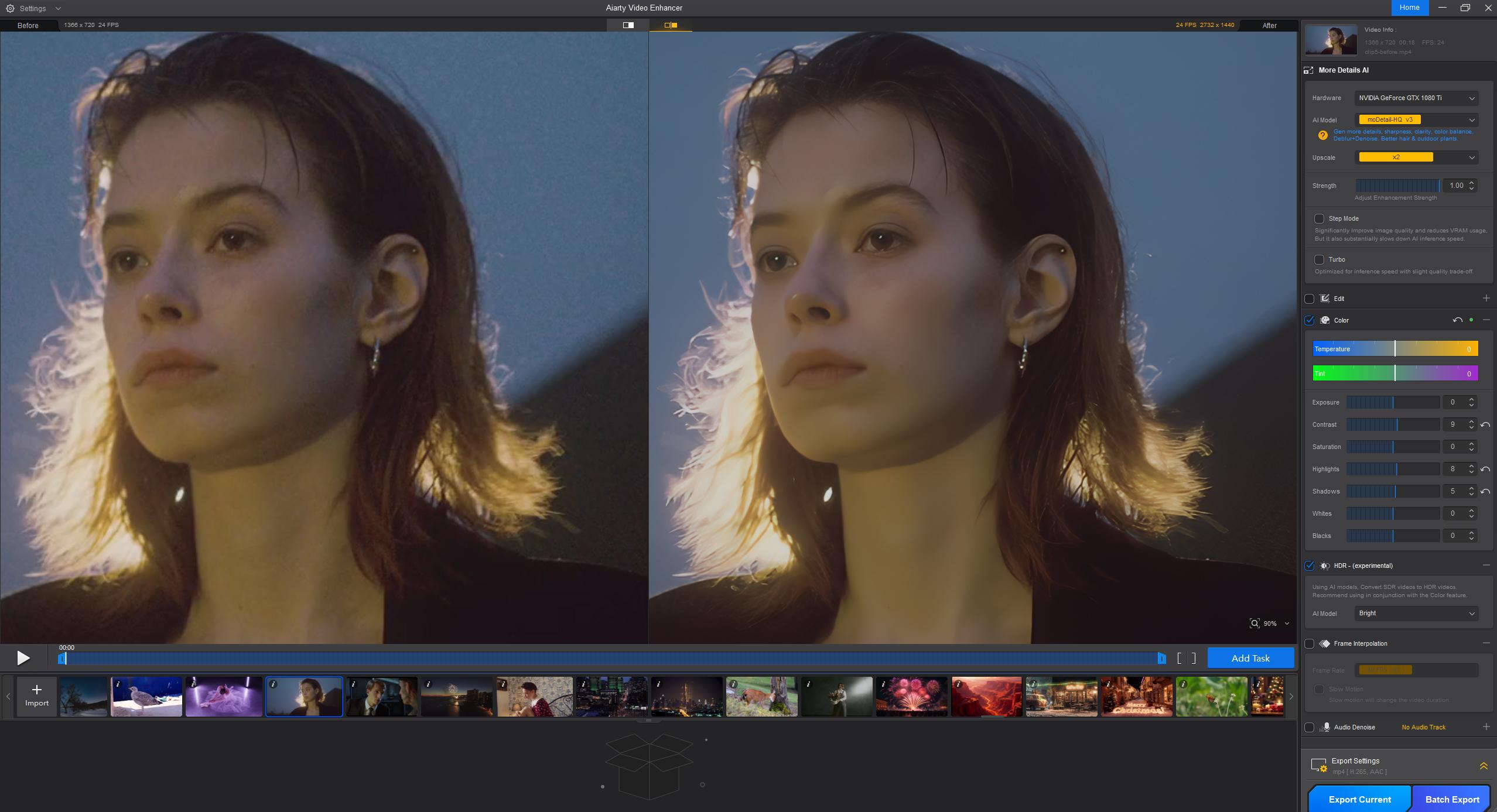
MoDetail-HQ: Best for portraits, pets, and landscapes, reconstructing fine textures.
Smooth-HQ: Keeps interviews or lifestyle b-roll natural while maintaining accurate colors.
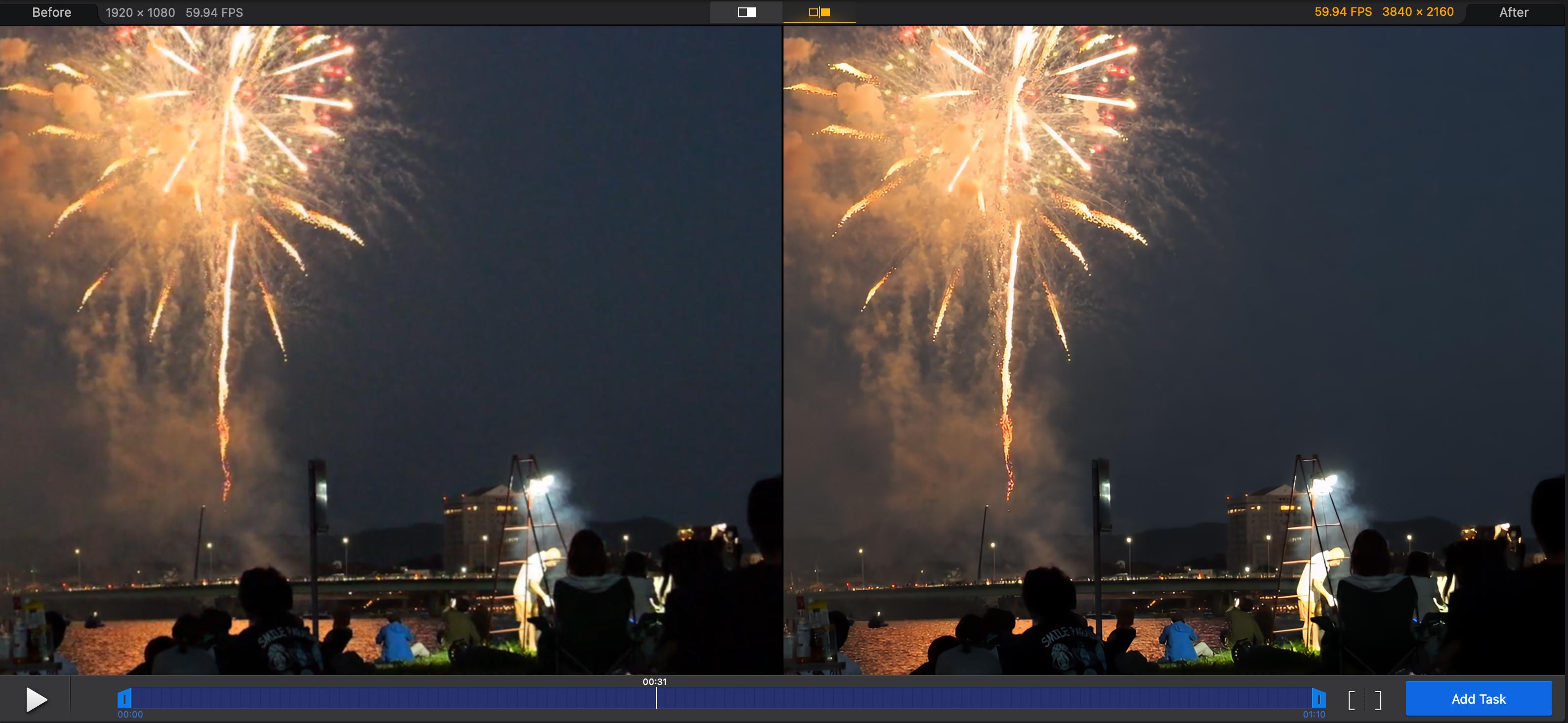
superVideo vHQ: Ideal for heavy noise in low-light or high-ISO situations — perfect for rescue enhancement.
Step 3: Adjust Video Enhancement Settings
Select your desired
resolution (e.g., 4K). Use the Strength Slider to balance sharpness and natural texture. Enable SDR-to-HDR conversion for richer shadows and highlights.
Step 4: Preview and Export Enhanced Video
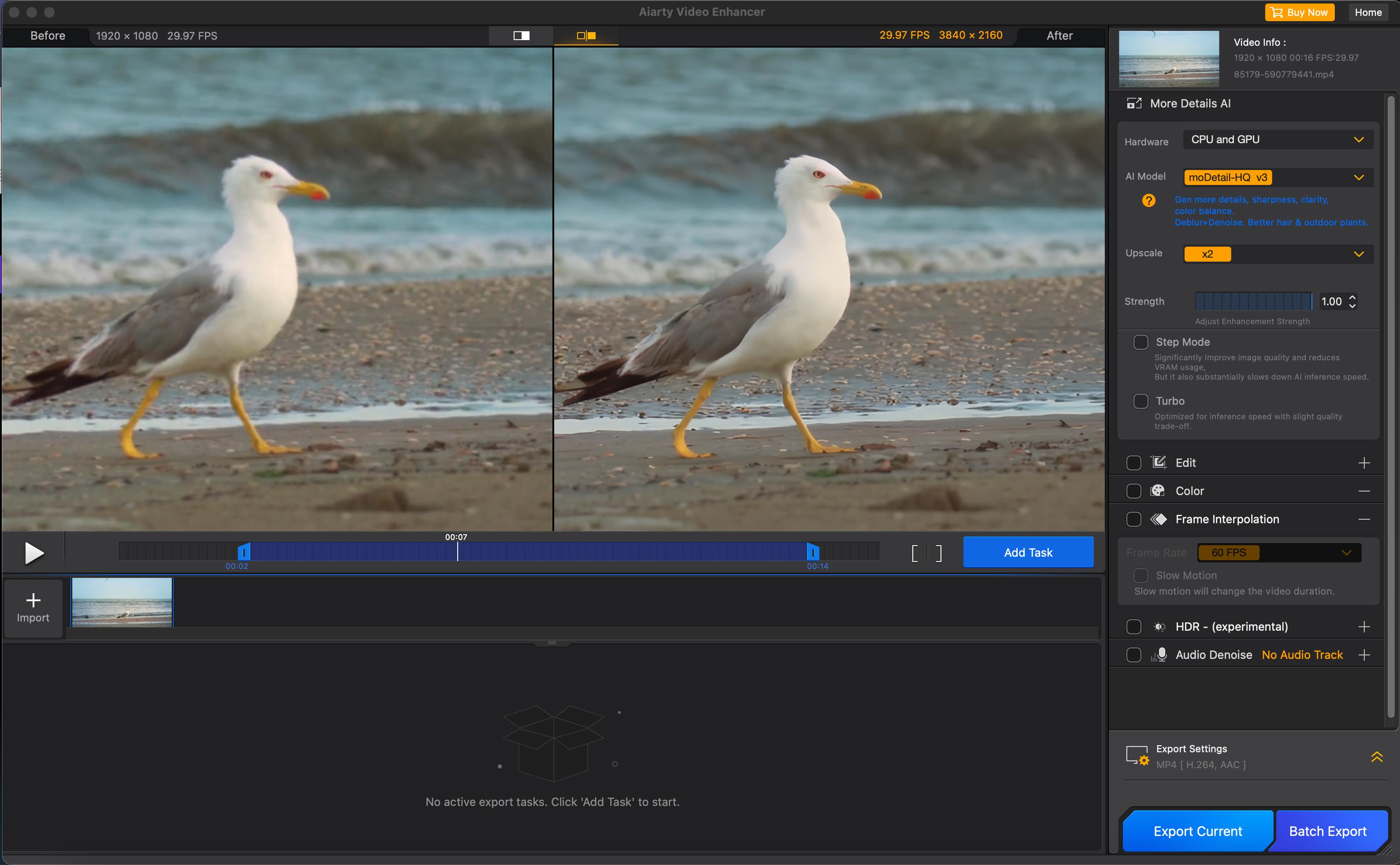
Preview footage side-by-side with the original. Once satisfied, click Run to export your enhanced video, ready for modern displays with smoother motion and improved clarity.
Tips for Integrating Aiarty Into Your Workflow
Turbo Mode: Speeds up processing by 3x with minimal quality loss — great for tight deadlines.
Step Mode: Ensures stable rendering on laptops or lower-VRAM machines.
Batch and Offline Processing:
Enhance multiple videos at once while fully utilizing your GPU for maximum speed, with all processing done locally on your computer.
These workflow features make AI video enhancement a practical addition, rather than a time-consuming task, for creators who want to rescue and refine footage quickly.
Real-World Results with Aiarty Video Enhancer
Below are a few practical examples showing how Aiarty’s different AI models perform in real
scenarios:
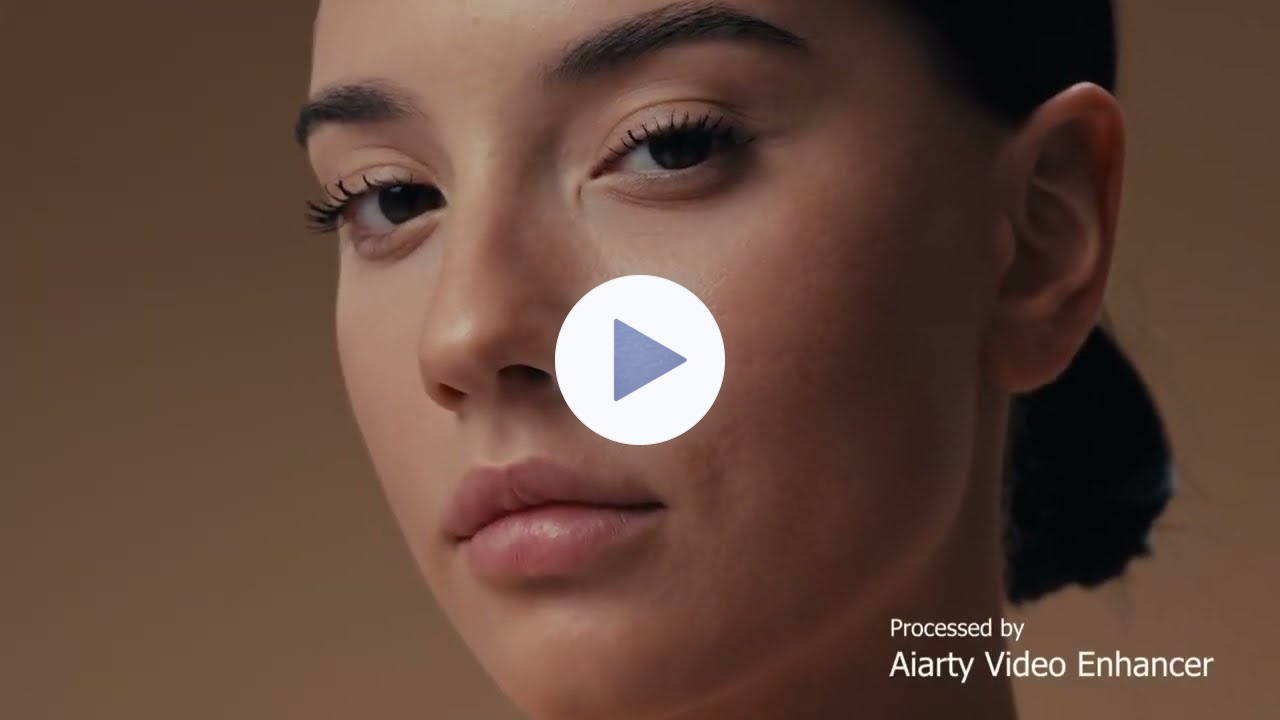
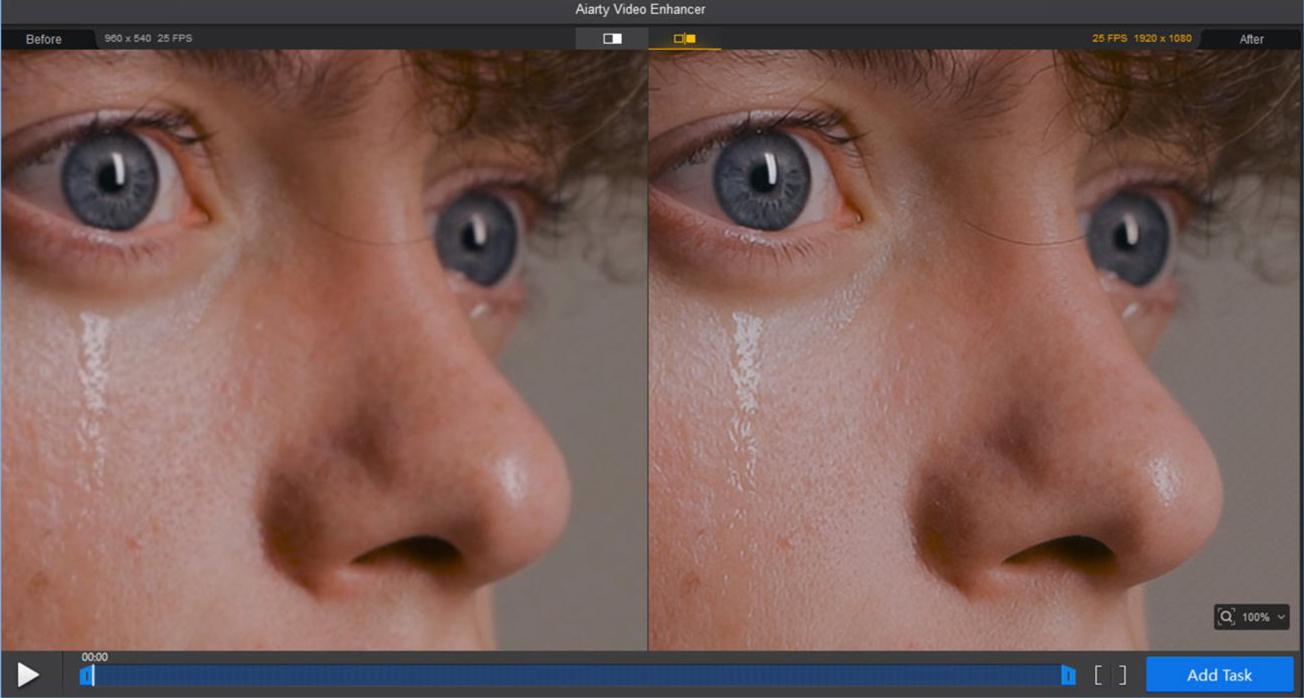
Enhanced a portrait video with moDetail-HQ v3 model
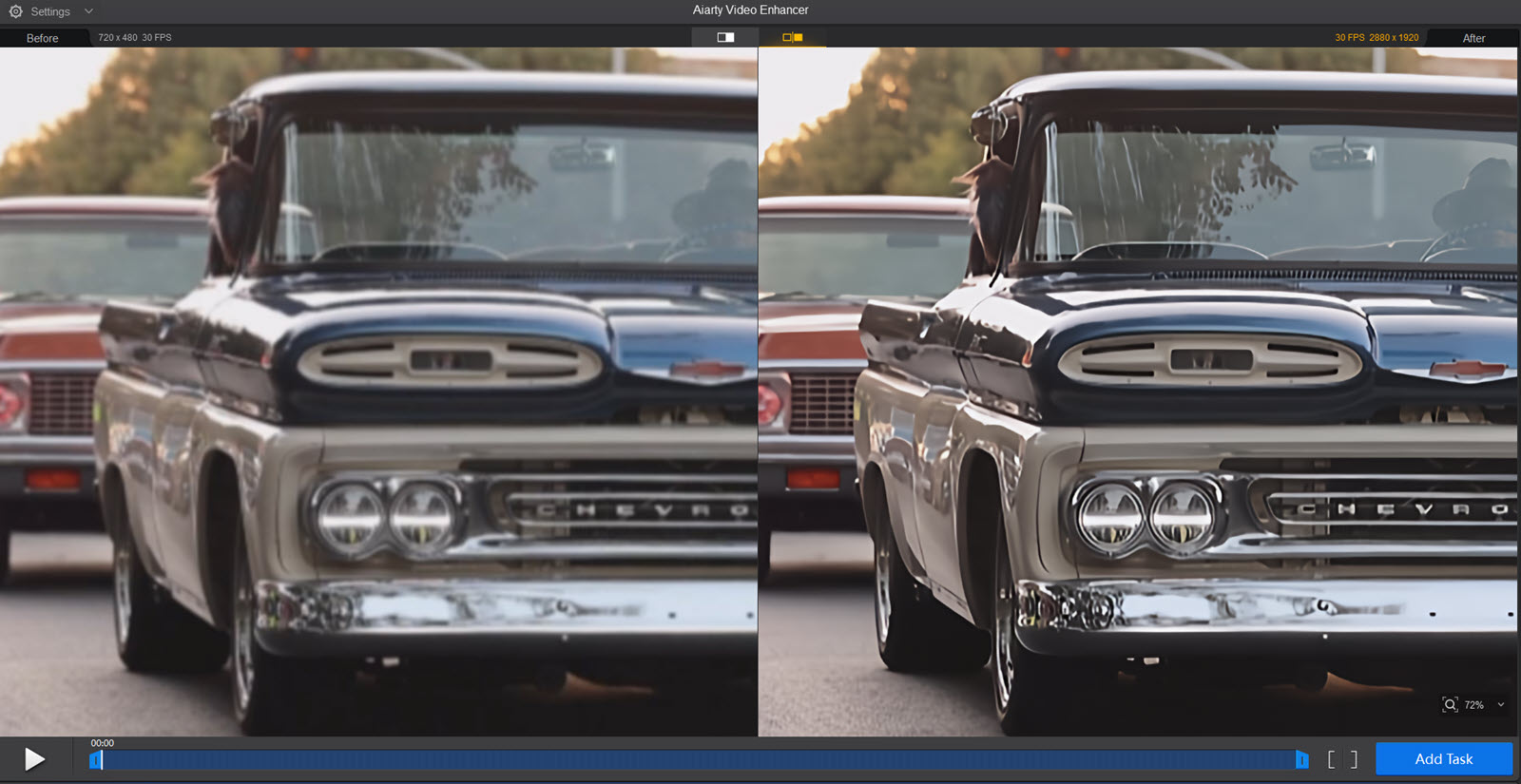
Upscale a Vintage footage using Smooth-HQ v3 Model
Denoise a night video with superVideo vHQ model.
Upscale a video and adjust the level of enhancement using a strength slider.
Some creators have shared their experiences using Aiarty in
real projects:
"Footage recorded in 4k and slowed down by 50% using Aiarty Video Enhancer." — A Red Dot Explorer, Videographer (@reddotexplorer)
Final Verdict
Aiarty Video Enhancer isn’t a magic fix, and it won’t replace careful shooting or professional video editing software. However, for photographers who occasionally work with video, it’s a practical way to rescue clips that might otherwise go unused.
Its strength lies in simplicity: reducing noise, improving clarity, and preparing footage for
modern displays without a steep learning curve. Used thoughtfully, it works well as a pre-processing step or last-resort fix when conditions weren’t ideal.
Even if your main focus remains still photography, having a straightforward tool to refine video can make hybrid shooting far more manageable.
For those interested, there’s currently a holiday offer, including an exclusive New Year coupon (NYSPECIAL) for extra savings.